Marketplace
The OrionIQ Marketplace provides a catalog of pre-built agent templates that you can install and start using right away. These templates cover common observability and security use cases, so you can get value from OrionIQ without building agents from scratch.
To access the Marketplace, navigate to OrionIQ > Marketplace in the left navigation menu.
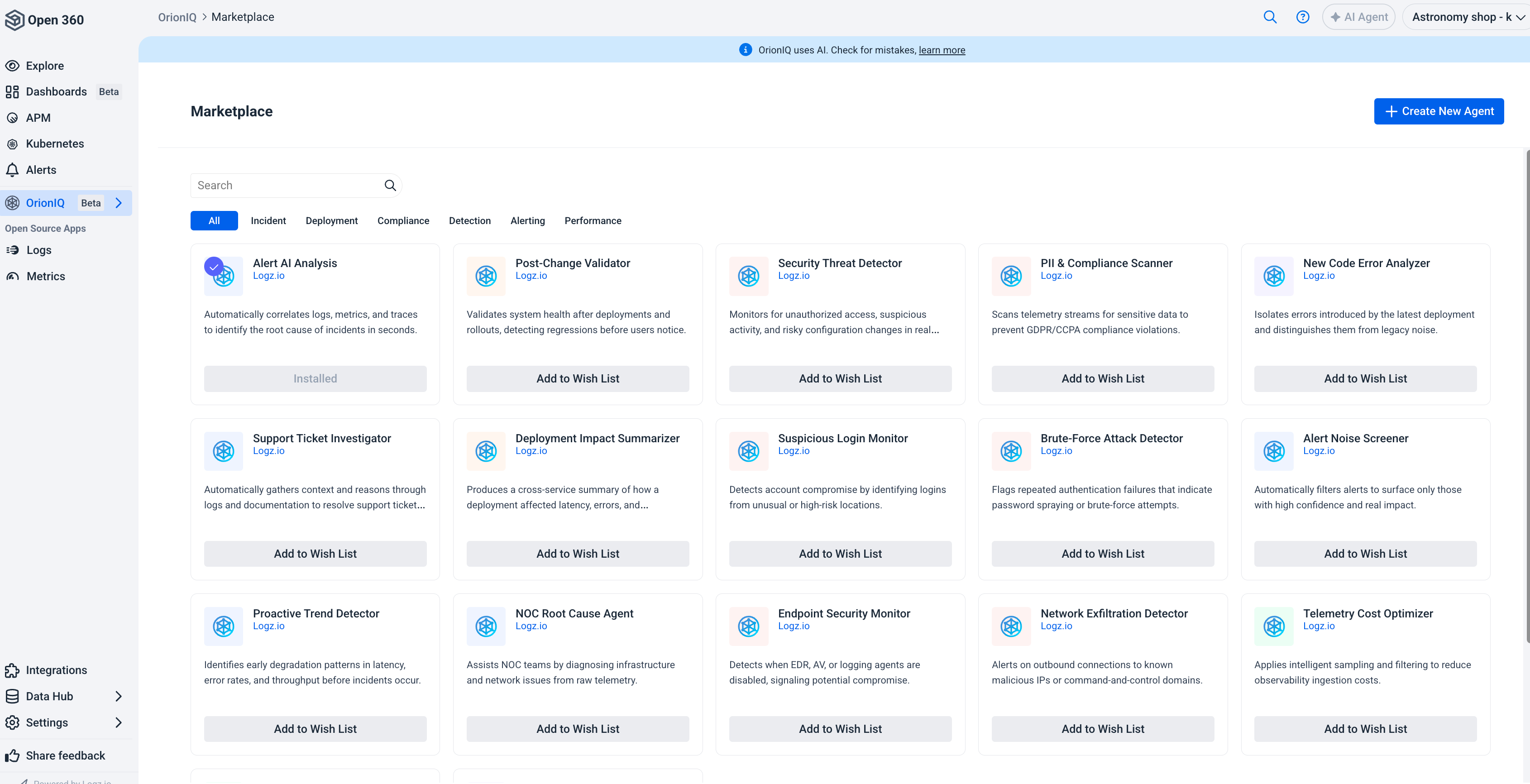
Browse agent templates
Agent templates are organized into the following categories:
| Category | Description |
|---|---|
| Incident | Agents that help investigate and resolve incidents, such as root cause analysis and support ticket investigation. |
| Deployment | Agents that validate system health after deployments and detect regressions. |
| Compliance | Agents that scan for sensitive data and help prevent compliance violations (for example, GDPR/CCPA). |
| Detection | Agents that monitor for security threats, suspicious logins, and brute-force attacks. |
| Alerting | Agents that filter and prioritize alerts to surface high-confidence, high-impact events. |
| Performance | Agents that identify early degradation patterns in latency, error rates, and throughput. |
Use the search bar at the top of the page to find specific agent templates, or click a category tab to filter the list.
Available templates
| Template | Category | Runs | What it does |
|---|---|---|---|
| Alert AI Analysis | Incident | When an alert fires | Correlates error logs, related metric anomalies, recent deployments, and the affected request paths, then summarizes the root cause with recommended remediation steps. This is the agent behind AI Agent Analysis. |
| Root Cause Analysis | Incident | On demand (API) | Reconstructs the incident timeline, correlates logs, metrics, and traces, inspects recent deployments and configuration changes, and produces a ranked set of probable root causes with supporting evidence and remediation recommendations. |
| Incident Triage | Incident | On demand (API) | Loads your runbook, walks through its diagnostic steps against live logs and metrics, evaluates the findings against the runbook's decision points, applies the prescribed remediation guidance, and produces a prioritized list of next steps for the responder. |
| Alert Digest | Alerting | Weekly | Summarizes what fired, what resolved, and how long alerts stayed triggered, with a period-over-period comparison, top offenders, first-time alerts, and incident-like episodes. |
| Alert Tuning Report | Alerting | Weekly | Analyzes triggered-alert history across log and metric alerts and produces a ranked list of concrete tuning recommendations: flapping alerts, fast self-resolvers, severity miscalibration, alerts that always fire together, dead alerts, and services whose alerts went quiet. Each recommendation cites the current value, the proposed value, the supporting numbers, and a link to the alert definition. |
| Error Logs Analysis | Alerting | Daily | Breaks down errors and warnings by application, compares them with the previous period, and highlights spikes. |
| Log Distribution Monitor | Performance | Daily | Analyzes log volume distribution and trends across services to detect anomalies, identify cost drivers, and keep logging healthy. |
Activate an agent template
To activate an agent template, click View details on its card, then click Activate. The preview turns into a short setup dialog, and the agent is created switched on.
The template decides which sections the dialog shows. A section appears only when the template lets you change it. Anything hidden keeps the template's value.
| Section | What you set |
|---|---|
| Trigger | The trigger type and, for a scheduled agent, the schedule. |
| Runbook | The instructions for agents triggered by an API call, an alert, or a deployment. A scheduled agent shows its context message and run frequency instead. |
| Output detail | Summary by default, unless the template sets a level. |
| Data sources | The accounts the agent reads from. For an agent that reads logs, the account you are on is selected by default. |
| Integrations | The integrations the agent can use. |
| Notification recipients | Who gets notified of the agent's results. |
Data sources, Integrations, and Notification recipients appear as one-line summaries that expand in place. If something required is missing, such as a data source or a reconnected integration, the row opens so you can fix it.
Learning is off for agents activated from the Marketplace, because it is billed separately. You can turn it on later in the agent's Agent details form. See Learning.
Click All settings to move your draft into the full agent form in the side panel, with everything you entered so far. Click Show details or Hide details to switch between the template description and the setup form.
If you close the dialog after changing the setup, OrionIQ asks before it discards your changes.
After you click Activate agent, a confirmation shows how the agent runs. Click Open in Agents Hub to see the new agent in the Agents Hub, filtered to the template's agent type.
You can activate a template more than once. Once agents exist for a template, its card and preview show the number of active agents. Click it to open the Agents Hub filtered to those agents. To switch an agent off, use the Agents Hub.
If a template you're interested in is not yet available, click Add to Wish List to signal your interest. This helps Logz.io prioritize which templates to build next.
You can also click + Create New Agent in the top right corner to build a custom agent from scratch.